Hackinthus: tipsandtricks

Lava Launched Xolo X1000 In Goa Teasing "Fastest SmartPhone"


Lava Xolo X1000!!


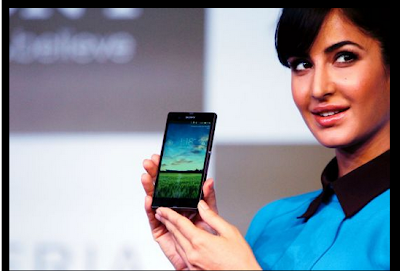
Katrina Kaif Launches Sony Xperia Z Smartphone And Tablets


Sony Xperia Z


Samsung Galaxy S4 : Event Round Up, Specs, Pricing and Availability

Samsung Galaxy S4.

Nokia Lumia 620 Review

Nokia's most affordable Windows Phone 8 device, Nokia Lumia 620

Install Instagram Unofficially On Blackberry Z10

How To Install Instagram Unofficially On Blackberry Z10 [Video] !!

Showing posts with label tipsandtricks. Show all posts

Thursday, April 25, 2013

"Install Big Games" And Solve The Problem Of "No Memory Available" On Samsung Champ

Low end phones always have very less memory on their device and people who own these phones are not able to enjoy games that require a little bit of more space on the device so that they can enjoy games more than 500 kb .

So here is a little trick that I saw on a blog dhavalthakur which can help you to play higher end games.


Install Big Games
  • Take your Mobile and Go To your Keypad.
  • In Keypad type *#52828378# and hit Call Button.
  • A new Window of Settings will open up.
  • In that window go to the OTA Test Option and open it
  • There Choose Maximum Jar size option and change its digit to 3000 or an other big value (this means that if type 3000,then now your cellphone download size will be of till 3000kb).
After you have inserted your desired memory,Click on Save.


No Memory Available Problem 


  • Take your Mobile and Go To your Keypad.
  • In Keypad type *#52828378# and hit Call Button.
  • Then there choose Memory Test option.
  • There Change the Java Heap Value to 1760.
  • Also Change the Midlet Heap Option to 2000.
Hence You are Done!

So this is a really nice trick provided by dhaval which will help users of Samsung Champ And other low end Samsung Devices

Tuesday, February 12, 2013

Multitasking Launcher For All Android Phones, SWAPPS

                 Recently Ubuntu has become the most talked about Operating System, people are trying to know all the features of it and exploring its interface. The Unity interface offers an incredibly quick and intuitive way to access your most commonly used applications from a launcher that appears on the left hand side of your screen. Developers have liked this feature and have built an "pseudo launcher" for Android devices called as Swapps.


                   The most exciting feature of this launcher is that it does not replaces the devices main launcher, just as in Multi-tasking feature of Samsung Galaxy Note-II. You can access all your applications from wherever you are without returning to the home screen in your Android devices. It is activated by swiping from the left hand side of the screen to reveal a list that is separated into three parts: favorite apps selected by the user, recently used apps. and a complete list of all the applications currently installed on the device. You can add up to ten of your most commonly used applications to the favorites section, and you can also customize any gesture for exiting this launcher.This is an application for making multitasking just a little bit easier in all Android phones because Multitasking feature is available only in recently available high end phones.


Photo Credits -XDA Developers

Features:

  • Contains full application drawer just like in your home application
  • 'Recently Used' panel contains 5 last applications you opened
  • 'Recently Used' applications background process can be closes by long press on the application
  • 'Starred' panel holds up to 10 of your favorite applications
  • It is accessible anytime, regardless of which application is currently running, using a simple swipe
  • Notification icon can be disabled or made transparent in the settings screen.
  • Fully customizable swipe-area (Side, Width, Height)
  • Doesn't affect battery life!!!

You can get this application from Google Play Store.

Source-XDA Developers

Monday, February 11, 2013

Control your smartphone via gestures using Trigger

                    All new high end phones posses "Google Gesture Search", an application that allows users to draw alphabetical letters to finds contacts, music, apps among others within your Android phone. But now developers have come up with an application "Trigger", that can be installed in any android phone and be controlled via pre-designed gestures as well as user-defined gestures.


                     Trigger is very user-friendly with it’s extensive customization options, allowing users to launch applications and shortcuts, toggle settings such as WiFi on/off, panels with various functions, and various other miscellaneous actions such as send emails and simulate the actions of the home button.
                     Some of the Pre-defined Gestures available in this application are listed below -:

Panels
1. Application Panel -Similar to an Application Folder
2. Image Panel
3. Info Panel
4. Text Panel
5. Note Pad Panel
6. Clip Board Panel

Applications 
1.Launch any application

Settings
1. Profiles -Change a large variety of settings with one gesture
2. Vibrate Mode On
3. Vibrate Mode Off
4. Silent Mode On
5. Silent Mode Off
6. WiFi On
7. WiFi Off
8. Bluetooth On
9. Bluetooth Off
10. Data On
11. Data Off
12. Airplane Mode On
13. Airplane Mode Off
14. Adjust Brightness
15. Adjust Volume

Extras
1. Do Nothing -For the moments when two gestures are too similar
2. Vibrate Once
3. Play Sound
4. Open Dial pad
5. Call Number
6. Send SMS/MMS
7. SMS/MMS Contact
8. Send E-Mail
9. E-Mail Contact
10. Open Website

Special
1. Lock
2. Dismiss Gesture Field -Also able to press the Trigger again to dismiss
3. Simulate Home Button
4. Switch to Previous App
5. Recent Apps Field 
6. Pull Notification Bar


Photo Credits-XDA Developers 


                  Trigger has two gesture-based modes, the first being drawing a gesture upon pressing a floating widget (called the trigger), and the second being swiping the floating widget up, down, left or right to trigger user define actions. Trigger also has a feature where  you shake your device to make the trigger appear and disappear. The recent update, contains 2 new panels: a notepad and clipboard, which both slide out once gestured for.
                  This wonderful application is available to anyone using Android 2.3 and newer, Trigger can be downloaded from the Google Play Store.
                   Play Store Link 

Source- XDA Developres

Saturday, November 24, 2012

Top Tips To Use S Pen In Note II

By Harsh Vardhan (Facebook) (Twitter)

Soon after the launch of Note II, people have started noticing about this Semi Tablet phone. Samsung's Note II comes in with a better S Pen compared to Note I. People have already started preferring this device over when it comes to any other expensive Smart Phone such as iPhone or HTC 8X. Today mostly we are concerning about the S Pen provided with Note II.


Note comes with an built in productive App called S Note and S Planner, Air View lets you see information quickly without even touching the device Screen!

The Note II is very clever indeed, allowing you to know when the S Pen is hovering just above its amazing HD Super Amoled Display providing features such as accessing contact information, browse pictures and even let you preview messages and emails without having to actually going through the folders and sub folders, menus, etc.

Just hold the rubber tip of the S Pen a few millimeters above notes, contact and photos to make them start working and trust me it's guaranteed to save your time everyday.

Now lets start talking something useful as till now we are only saying its useful its fast and it's saves time but how? Coming to the command performance, if you find your way around your Galaxy Note II using only the traditional menus, you're not making full use of it's potential. Trust me! it's far better.

Quick command lets you draw gestures with your S Pen, enabling you to jump straight to the app or feature you need. To use Quick command, press the S Pen button drag it up the screen and see the magic happen!
It is not only limited to certain command as a surprise i found it you can even make your own command set to certain action so that it turns more time saving for the actions you want.

To get started just tap the setting button and choose 'Add a command'. A popup will appear, allowing you to choose the application or function you want to create a Quick command for. Then all you need to do is draw a new gesture with your S Pen. Tap 'Done' and next time you launch Quick command, your brand new command will be good to go! Smart enough indeed!


The most interesting feature i found using S Pen was cutting a portion. If you're browsing a web on your Note II and find a great idea, you can grab it and save it the portion you require using Easy clip. Simply hold down the S Pen button and draw a line as you wish around the portion you want to capture. It doesn't t even matter what shape you draw- the S Pen will create a clipping path and send whatsoever inside it to your Screen Shot folder.

Moving to the next part you might have come across the situation while on call when you needed to take something down. With Note II you have nothing to trouble yourself looking for a paper and a pen. As sooner you remove the S Pen from it's holder, Pop up note will fire into life, so you can write down whatever you need. Directly you have the feature of saving it or even sharing it straight from there to anyone you wish. Saves time and this is pretty decent thing.


One of the creative feature and very interesting feature i came across was Memories Stick. You must be having memories regarding yourself making notes back of your old pictures so that you just wrote down where you took the picture or the guy in the bad dress or the special occasion. However due to everyone taking lot of pictures and having a image just on our computer the memories we did those time seems to be faded away. But thanks to the feature of Note II, Photo Note allows you to flip your photos over on screen, then write on the back, just like you would be in real life.


The S Pen is great for drawing, but what if you can't draw? That not a problem at all if you have the Note II, when you use the S Pen with the idea of sketch function. It helps you to visualize the ideas and make engaging presentations by automatically adding illustrations to your hand-written notes.

Did you know you can even write flawlessly with the S Pen. It can works as near to the traditional pen can work. You can jolt down any idea or information as smooth as you write on the paper. Even you can circle important information, underline things, make quick annotations and even cross things out., making the Note II the most natural writing experience you can have on the smart phone.

Overall the S Pen is an interesting object we have ever seen on the Smart Phone. In-case you are going to get a high end Smart Phone in the near future, Note II it is!

You can like us on Facebook or follow us on Twitter.

Do let us know what you feel in the comment section.

Monday, October 15, 2012

A new way of switching Windows !!!!

 BY- Rustam Ali


Got bored of switching windows in Windows OS using CTRL+TAB & WINDOWS+TAB ????
Today i will introduce you to a software that will make switching windows a lot easier. This software has been inspired by features of Macintosh OS (Mission Control) and has been forged for use in Microsoft Windows OS. The software is called as Production Release 1.0 , you do not have to install it just double click on it and it will start working.
The link for downloading this software is sourceforge.


You can like us on Facebook and Twitter to keep yourself updated.

Saturday, October 06, 2012

Make your android phone look like an iphone 5 !

By-Harkirat singh

                                 People always want to change the themes,wallpapers and look of their smartphones but this application gives you a chance to switch the look of your operating system,obviously this is not something new but XDA Developers Created a new app called Fake iPhone 5 has just been uploaded to Google Play

.
                                             FakeiPhone 5 is a replacement launcher that makes your Android phone's screen look almost exactly like an iPhone 5's. The main home screen's icons look like duplicates of iOS 6's. By default, the launcher starts with four rows of icons, but you can switch to five.

The developer lists the following features on the app download page:
  • Most realistic iPhone skin on the market.
  • Fully functional home screen replacement.
  • Beautiful icon effects – all installed apps are styled.
  • Comes with 16 default apps on the first page.
  • Custom wallpapers supported!
  • Swipe-to-Search available – just swipe left at the main screen.

Tip: To switch back to your previous launcher, tap the Menu key on your Android phone, then Advanced > Switch Launcher.

Via-Ghacks

Saturday, August 11, 2012

15 TIPS AND TRICKS FOR MOUNTAIN LION OSX !!!


(Credit: CNET)
Whether you have been using Apple's latest operating system for the Mac, OS X Mountain Lion, for a while now, or you are just installing it, you'll benefit from reading through some of the tips below. Some of them are ways to improve on the overall experience, while others will bring back past functionality. Let's get started, shall we?
Preparing your Mac
When upgrading the operating system, no matter your platform of choice, it's always a great idea to not go into it blindly. Be prepared, and more importantly, make sure you computer is prepared. Some of the prep is stuff you should be doing anyway, so make sure to give it a read if you are yet to upgrade.
Get started with Notification Center
Mountain Lion has borrowed a lot of features from iOS, including Notification Center. With OS X now having one convenient place for organizing notifications on your computer, you'll more than likely end up using it to some extent. It's best you know what it does and how to customize it.
Options for accessing Notification Center
One thing not discussed in the getting-started guide for Notification Center is all of the different ways to access it. The guide touched on gestures but left out keyboard shortcuts and hot corners. This post will lay out all of the options and shortcuts to revealing Notification Center for you.
Growl and Notification Center
Since we are on the topic of Notification Center, we should probably talk about the popular OS X notification platform Growl. If you're interested in integrating your Growl alerts into Notification Center, this post is made for you.
AirPlay mirroring
Another big feature brought from iOS to OS X is AirPlay. If you have a compatible Mac, you can now mirror your Mac's display to your TV through an Apple TV. For a video demonstration, check out this post.
AirPlay-only audio
If mirroring your display isn't something you want to take advantage of, but you want to stream the audio from your Mac through your TV, you can do it with a few clicks of the mouse.
Dictation
Using dictation to type out a quick response in Messages, a blog post, or even a lengthy e-mail can save your fingers from pounding away on the keyboard. Using dictation on Mountain Lion is simple, with almost no setup required. Just make sure you have an Internet connection.

Preview open tabs in Safari
Safari 6 was released alongside Mountain Lion, bringing a slew of new features to Apple's beloved browser. One of them is the ability to quickly preview all of the open tabs in your browser window. This is another feature that's similar to what's found on iOS. It works well and comes in handy if you're in the habit of leaving a lot of tabs open.
Bring back Web sharing
It's possible to bring back Web sharing, a feature that went missing in Mountain Lion, with a little work. If you're comfortable with Terminal, you'll feel right at home enabling Web sharing on Mountain Lion. If you aren't comfortable with Terminal, Topher Kessler does a great job laying out the required steps in a simple manner.
VIPs
We all have a shortlist of contacts whom we deem a VIP -- someone whose e-mails we respond to immediately. You can now mark those contacts as VIPs and treat them as such in Mail on Mountain Lion. You can even limit Notification Center to only show alerts for VIP e-mails and no one else.
Restore Save As
OS X Lion took away a functionality users had grown accustomed to over the years: Save As. There was plenty of bellyaching and bemoaning the missing feature throughout the OS. Enough of it, in fact, that Apple has brought back the feature in Mountain Lion. You'll need to do some setting up to get it to work, but it's back!

Expose, I missed you
Another change in OS X Lion that upset users was in how Expose behaved. In Mountain Lion, you'll need to uncheck a box in system preferences, and the old beloved Expose feature of displaying all open windows, instead of just one per open program will be restored.

Keep it secure
You can now encrypt a disk volume with a simple click, securing your data with almost no effort. There are some caveats that you need to be aware, however, of before you dive right in.
Sync Notes with Android
The new and improved Notes app on Mountain Lion is built to be used with Apple's iCloud service, allowing for easy syncing between all iCloud-enabled devices. This guide will not only show you how to sync iCloud devices, but also how to sync your Android devices with the Notes app.
Sync iOS with Mountain Lion
iCloud is built into OS X Mountain Lion from the ground up. Between syncing documents from Preview and Pages to contacts and calendars, iCloud is handling it all. As such, you'll want to make sure your iOS device is taking advantage of as much of the cloud as possible. This great walkthrough will show you how easy it is to be achieved.
SOURCE-CNET

Sunday, July 29, 2012

Five easy ways to improve your Android’s battery life !!


Does the battery of your Android phone last more than a day? If it does, you deserve an award! Most Android users complain about poor (or absolutely terrible) battery life of their smartphones. While we agree that smartphones are battery hogs, a few small tips here and there will definitely help your phone run for a much longer time. Here are five ways to boost your Android’s battery life.

Display 
The most important part of your phone when it comes to battery life saving is the display. If you’ve been keeping your display on 100 brightness at all times, congratulations, you have found the single biggest problem with your phone’s battery life. Screen brightness is inversely proportional to the battery life of the phone. In simple words, keep the brightness low! 

Display problems
Display problems


Automatic brightness works well but unless you have a lot of viewing to do directly under sunlight, you don’t need a very bright screen. Also, ensure that your phone’s screen timeout isn’t left at 15 minutes. Have a short 30 second screen timeout. You’ll notice a considerable improvement in your phone’s battery life, if you follow even this one routine. 

Connectivity
Most people forget to turn off their Wi-Fi when they leave their homes or offices. They also forget to turn off GPS when location-based services aren’t required. We have observed in all our battery tests that Wi-Fi takes up a considerable amount of battery life, so if you’re on the move, don’t keep the Wi-Fi signal on. Your phone will constantly look for networks to connect to. Keeping a power control widget on your home screen at all times to help you quickly see the connectivity options that are required to stay on, and those that aren’t. 
Another important thing to note is to ensure that your phone is near your Wi-Fi router. If it is at the edge of your router's Wi-Fi zone, it’ll constantly trying to connect to the Wi-Fi. For houses that have routers installed at one end, and with multiple walls, this becomes a necessity. 

Running out of juice?


Home Screen
 The contents on your homescreen are extremely essential in deciding how long the battery will last. Kick the kitten out of your phone’s animated live wallpapers, remove the Facebook and Twitter live feed widgets. It’s important to keep the home screen clutter-free and only keep the things that are very important to you. Even if they’re Google’s live wallpapers, it’s best you keep them off your home screen. If constantly wanting to have Twitter, Facebook updates is important, keep an update time interval so polling is restricted to minimum. 

Syncing
If e-mail is a priority, keep only email a priority. If the rest isn’t important, don’t have it on auto sync at all time. With auto sync on for all your applications and services, you significantly suck up the juice in your battery. You can simply turn off syncing for Finance, News, Facebook, Twitter, Weather and other options, unless it’s absolutely necessary. Or, as mentioned earlier, enter the settings and tweak the options. For example, you don’t need to know the weather every minute; keep an update interval of about 2 - 3 hours. 

Identify the problem


Battery Use
Android has a neat little function that lets you view what is taking up most of the battery life. System Settings –> Battery Use lets you view quantitatively what task or function is taking up your phone's battery life. As a test, we tried reducing the brightness to a minimum and the screen tab showed a significant drop in percentage. It’s also worth mentioning that you need to shut down games and apps, and not let them stay running in the background. The more strain you put on the performance of the handset, the quicker the battery will drain out. Does your phone has a ‘cool’ feature like, say, Smart Stay? Turn it off, please. 

Last but not least, do check out our battery life tests on the phones we review. They’ll give you a clear idea of the battery’s performance, in case you’re picking up a new phone. That’s sums up our list. Have some more tips? Let our readers know in the comments section below.

Share

Twitter Delicious Facebook Digg Stumbleupon Favorites More